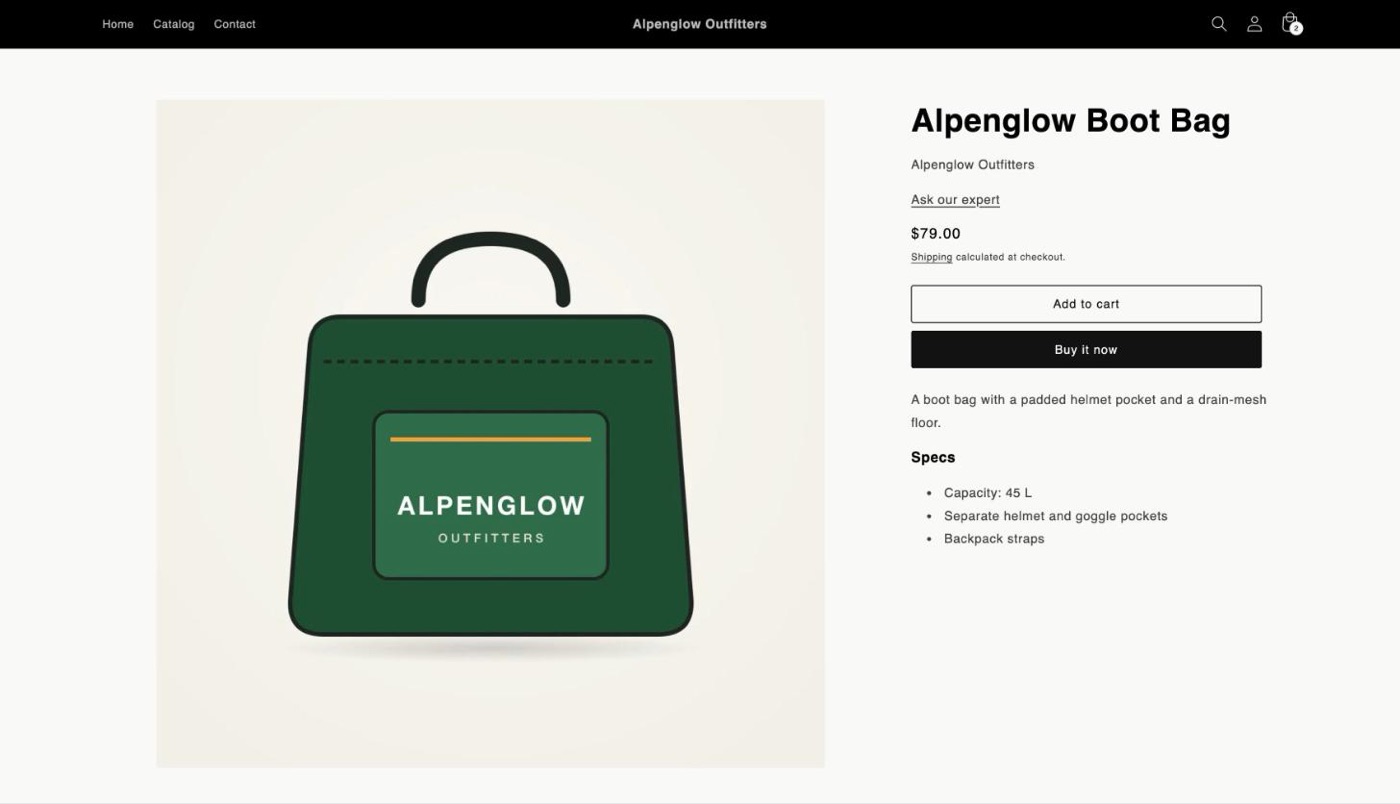
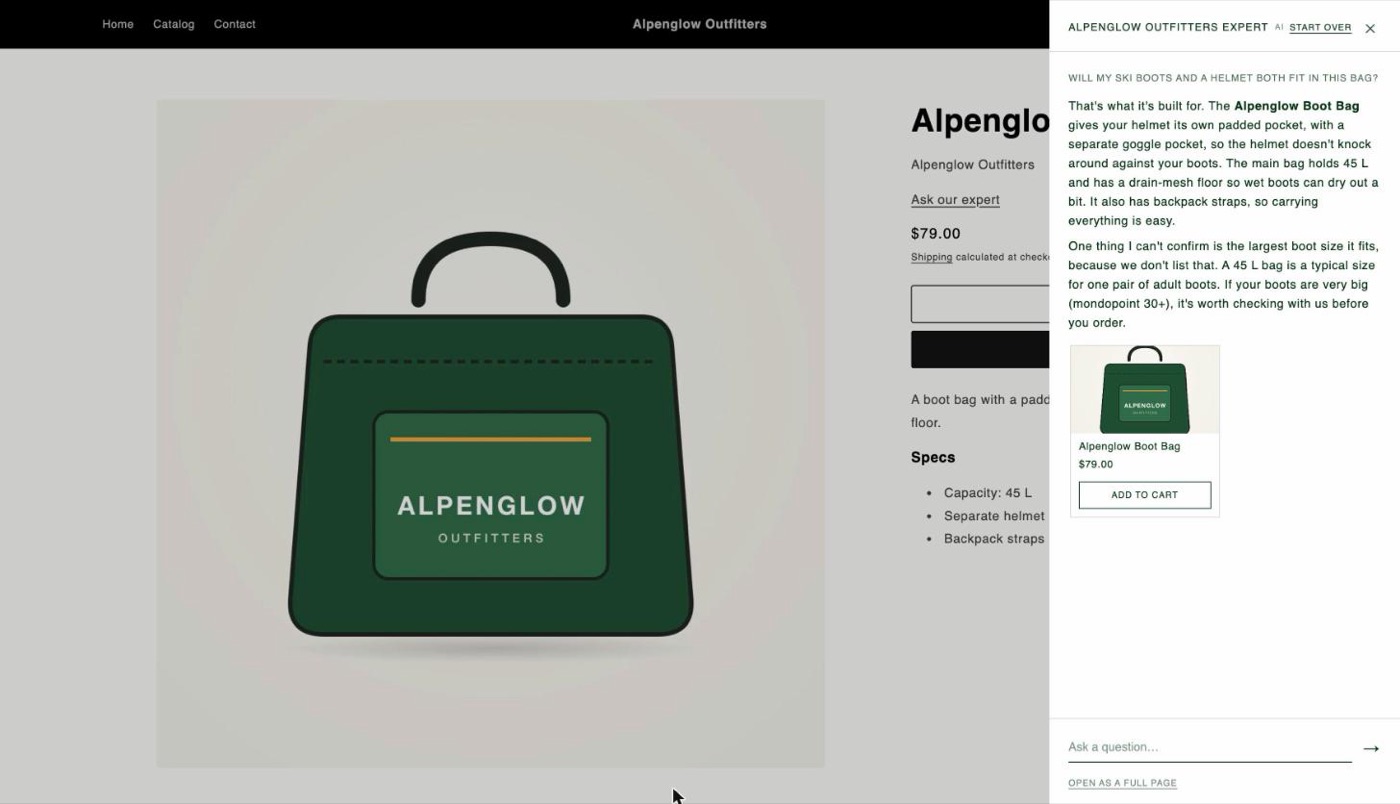
Out of the box, your expert sits behind a button in the corner of every page and opens in a panel with its own look. For many stores that's the right place. If your store has a very particular design, you can set it up so the expert looks like part of your own pages instead: no corner button, a text link in your own type where you choose, and a quiet side sheet in your store's fonts and colors.
It takes three settings in your theme editor and about five minutes. Nothing changes for AI shopping agents: they still find your expert on every page (see What AI agents still see).
Step 1: Change the app embed settings
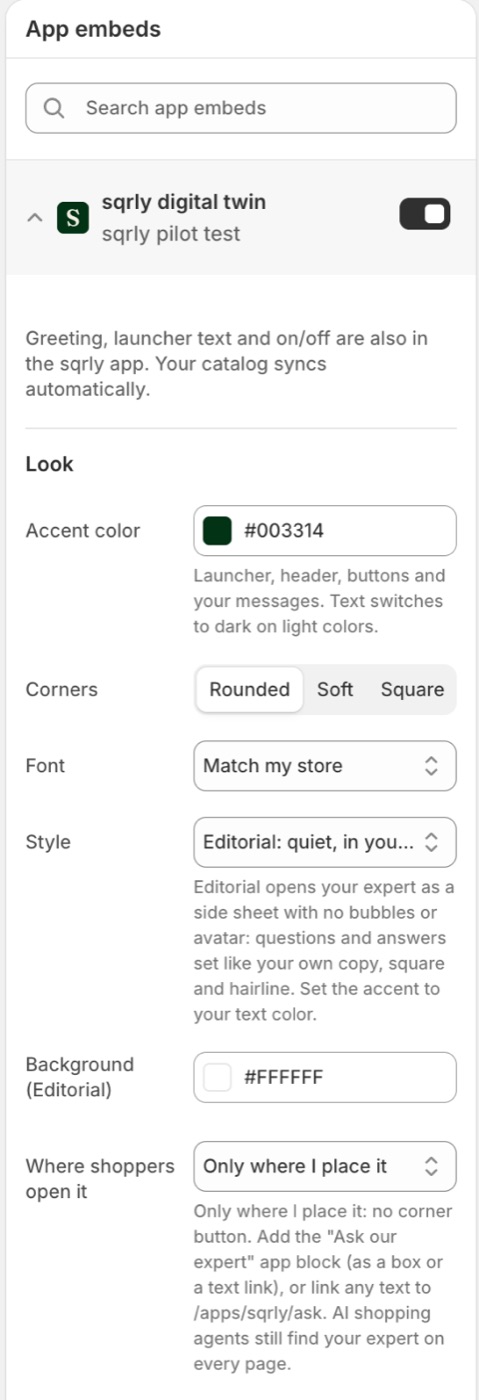
In Shopify, go to Online Store → Themes and click Customize on your live theme. In the theme editor, click the App embeds icon in the left sidebar (the third icon at the top) and open sqrly digital twin.
- Style: Editorial. The expert opens as a full-height side sheet, in your store's fonts, with square corners and thin lines.
- Accent color: your text color. In Editorial, the accent is the one color for text, lines and buttons. Use the color of your body text, often a near-black.
- Background (Editorial): the sheet's background, for example the off-white or cream of your pages.
- Where shoppers open it: Only where I place it. The corner button disappears from every page.
- Further down, under Automatic box, switch Show an "Ask our expert" box off, so sqrly doesn't place its own box on product pages next to your link.
- Click Save (top right).
Step 2: Add the link to your product page
Now place the link shoppers click to ask.
- Open a product page in the editor. In the dropdown at the top centre of the theme editor (it usually says "Home page"), choose Products → Default product.
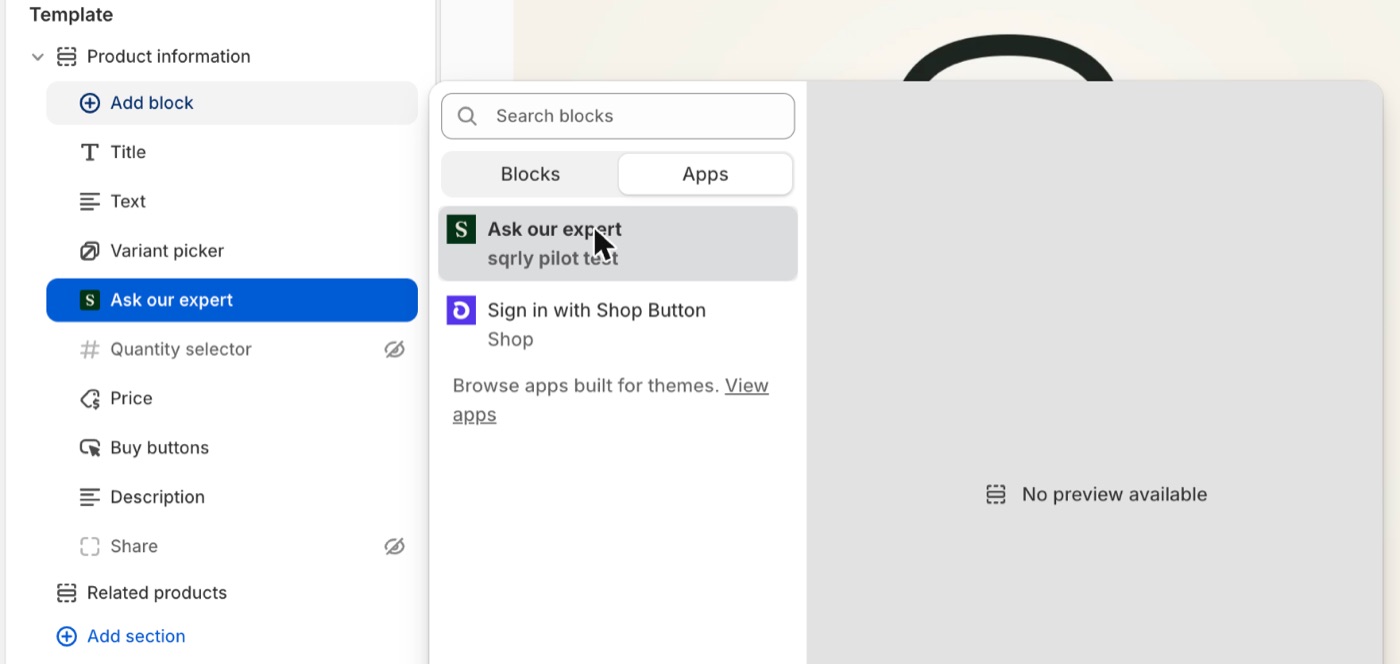
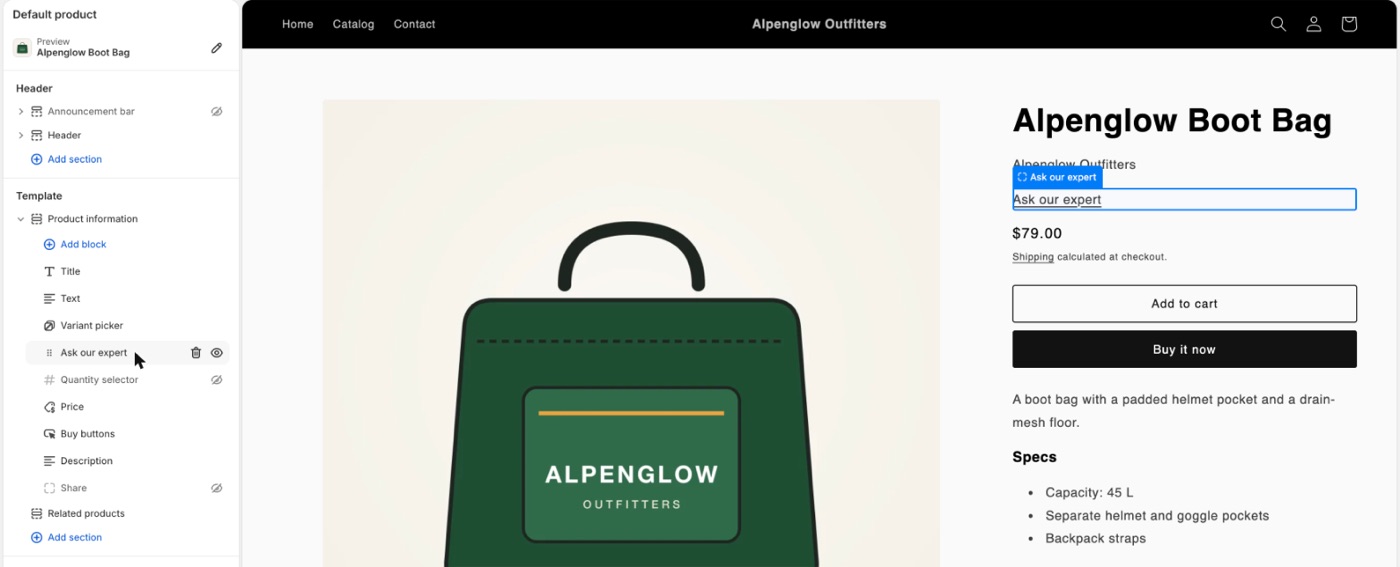
- Open the product section. Click the sections icon at the top of the left sidebar (the first one). Under Template, click Product information to expand it. You see its blocks: Title, Price, Variant picker, Buy buttons, Description and so on.
- Add the block. Click Add block at the top of that list, open the Apps tab, and choose Ask our expert.
- Move it where you want it. You can't drag in the page preview, only in the left sidebar. Hover over Ask our expert in the block list: a six-dot handle appears to the left of its name. Drag it by that handle, for example under the title or under the description.
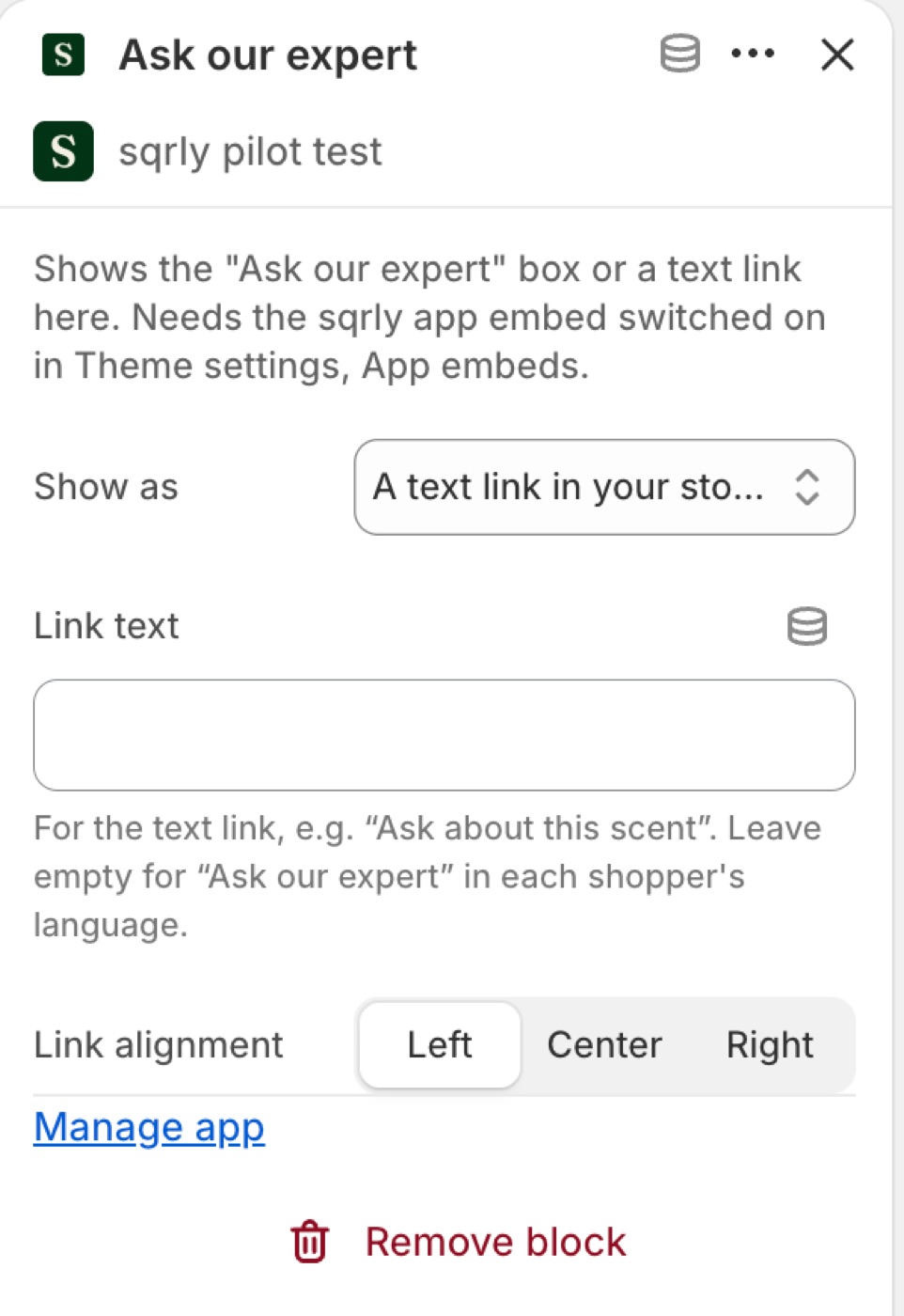
- Make it a link. Click the block. In its settings on the right: - Show as: A text link in your store's type. - Link text: your own words, for example "Ask about this scent" or "Questions about sizing?". Leave it empty to show "Ask our expert" in each shopper's language. - Link alignment: to line it up with the text around it.
- Click Save.
If dragging is fiddly, there's another way: remove the block, then hover over the gap between two blocks in the left list. A small + appears there, and the block you add goes into exactly that spot.
Step 3: Check it on your store
Open a product page on your store (not in the editor) and reload it. You should see your link and no button in the corner. Click the link: the side sheet opens from the right. Clicking beside it or pressing Escape closes it. On phones, the sheet takes the full screen width.
If you still see the old look, reload with Cmd+Shift+R (Ctrl+Shift+R on Windows); your browser may have kept the old styles for a minute.
Link from anywhere in your own copy
You don't have to use the block. Any link on your store to /apps/sqrly/ask opens the side sheet, so you can write it into your own content: a product description, a rich text section, an FAQ, or a row of links your theme already has. Because it's your own link with your theme's own classes, it looks exactly like the links next to it.
<a href="/apps/sqrly/ask">Ask about this scent</a>To start with a question already asked, add it to the link:
<a href="/apps/sqrly/ask?q=How%20does%20it%20wear%20on%20skin%3F">How does it wear on skin?</a>This is also the way in if your theme's product section doesn't accept app blocks, which happens with custom-built themes. Your developer adds the link where it belongs in your design.
The expert page follows too
Under the question field, the side sheet links to your store's expert page ("Open as a full page"), which shoppers and AI agents can also open directly. With Editorial switched on, that page follows the same quiet style: no avatar or rounded box, questions as small labels, suggested questions as text links. It uses your theme's fonts and buttons either way.
What AI agents still see
The corner button is for people. AI shopping agents find your expert in other ways, and none of them change when you hide the button:
- Every page still carries a short description of your expert with a link to its page. Shoppers don't see it; agents that read the page do.
- Your expert's site tools stay available to browser agents that use them, next to Shopify's own cart and catalog tools.
- The link you place is a real link to your expert page, so an agent can follow it even without running your store's scripts.
More in AI shopping agents.
Tips
- Match the voice, too. The look is one half; the other is how your expert writes. In the sqrly app, under Knowledge, describe your brand voice in a few sentences ("short, sensory, no exclamation marks"). Your expert writes its answers that way.
- Want it on collection pages too? Add the same block to your collection template, or link to
/apps/sqrly/askfrom your own content there. - Back to the standard look any time: set Style back to Standard and "Where shoppers open it" back to the corner button. Your placed links keep working.