Your expert doesn't have to be a bubble in the corner. It can sit in your store in four ways, and you can use one, several or all of them:
- A button in the corner, on every page.
- A box on your pages: product, collection and search pages, in three sizes.
- A text link in your own words, wherever you put it.
- Its own page, which shoppers and AI agents can open directly.
Each one is a setting in your Shopify theme editor, under Online Store → Themes → Customize. No code, and you can change your mind at any time. The screenshots below are from Talusline, our demo store, with its theme left as it is.
A button in the corner
The default. A small button sits in a bottom corner of every page, and opens your expert in a panel next to the page, so shoppers never lose the product they're looking at.
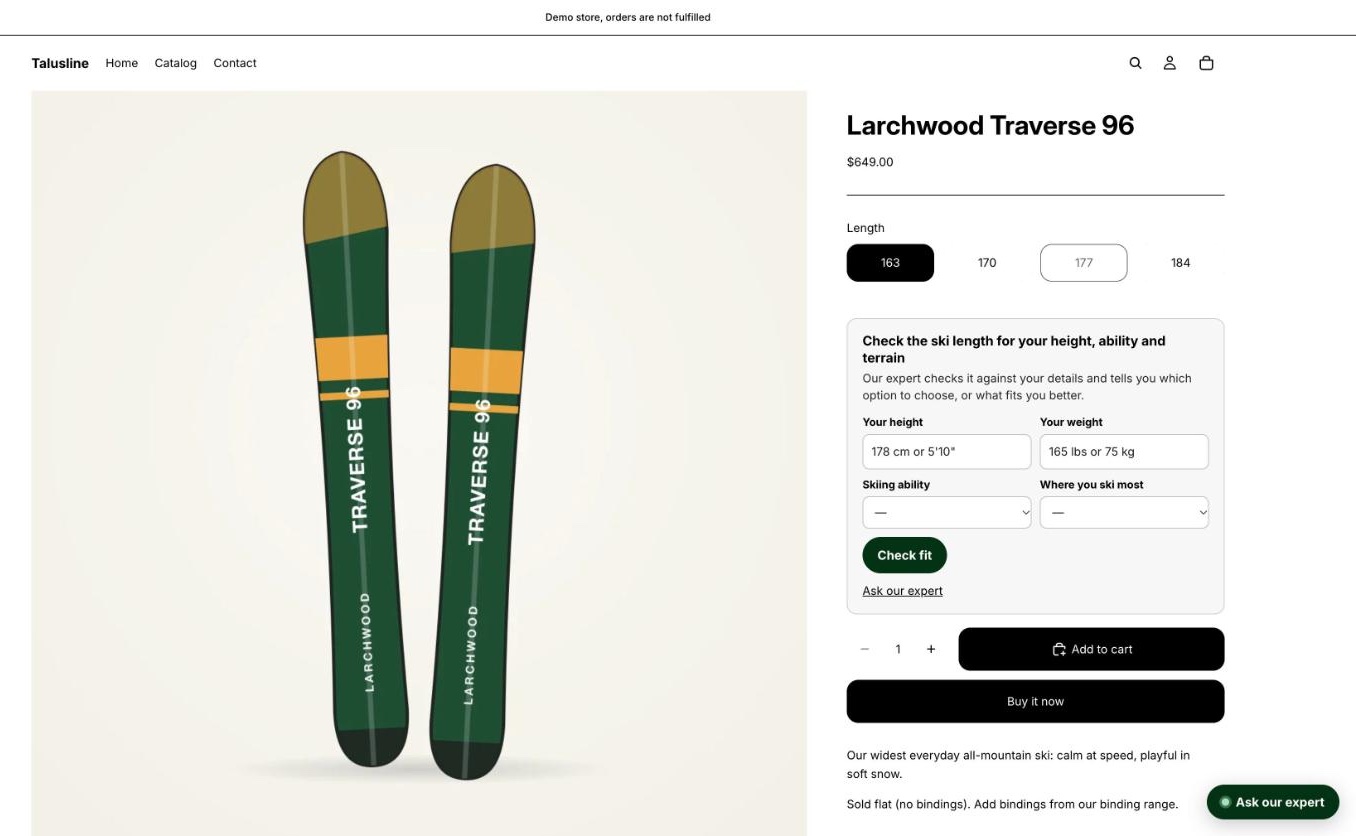
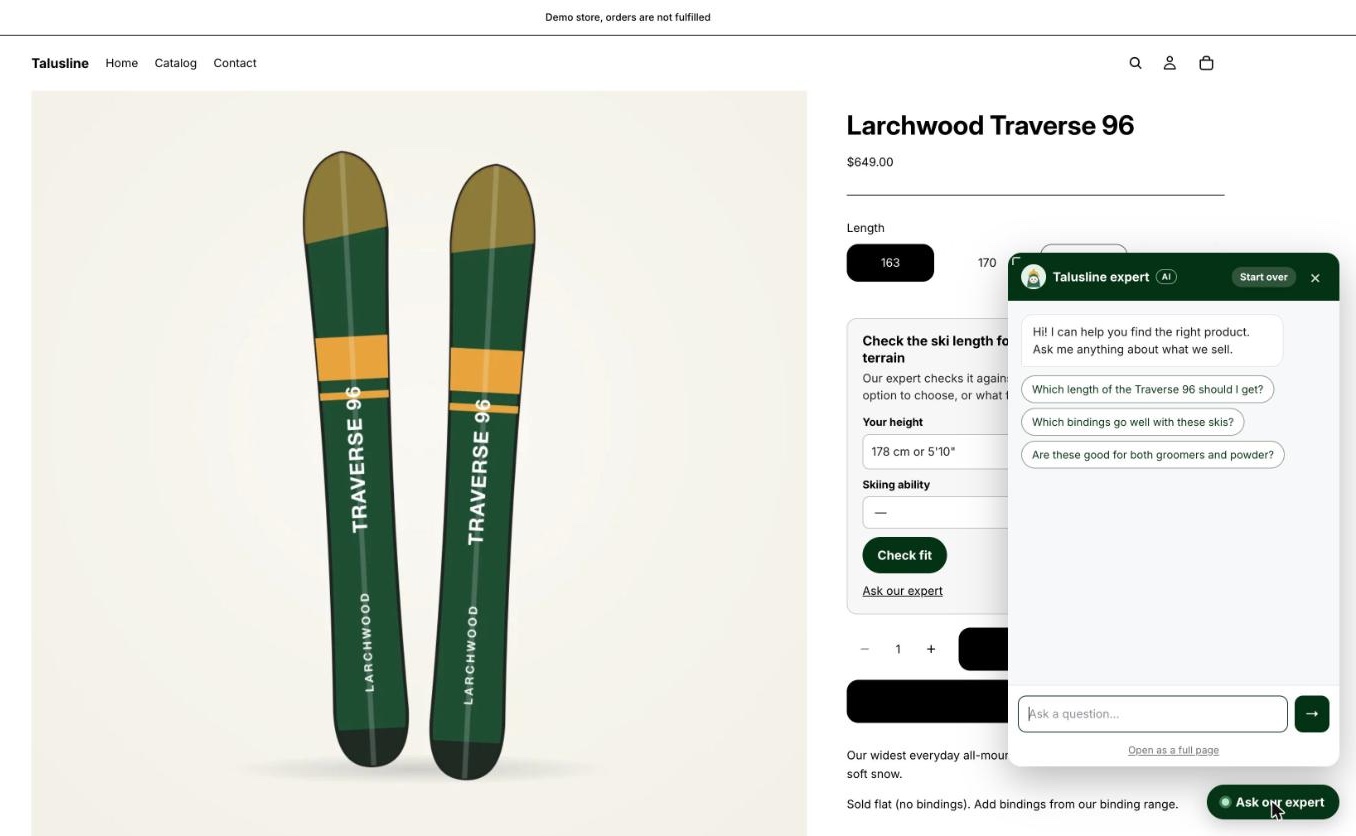
What you can change, in the theme editor's App embeds → sqrly digital twin:
- Position: bottom right or bottom left, and the distance from the bottom, so it clears a sticky bar or another app.
- Accent color, corners (rounded, soft or square) and font (your store's own, or a clean system font).
- The button's text, in the sqrly app.
- Share the corner: if your Smile rewards button or a link of your own is down there too, the two join into one pill instead of two buttons. See Share the corner.
A box on your pages
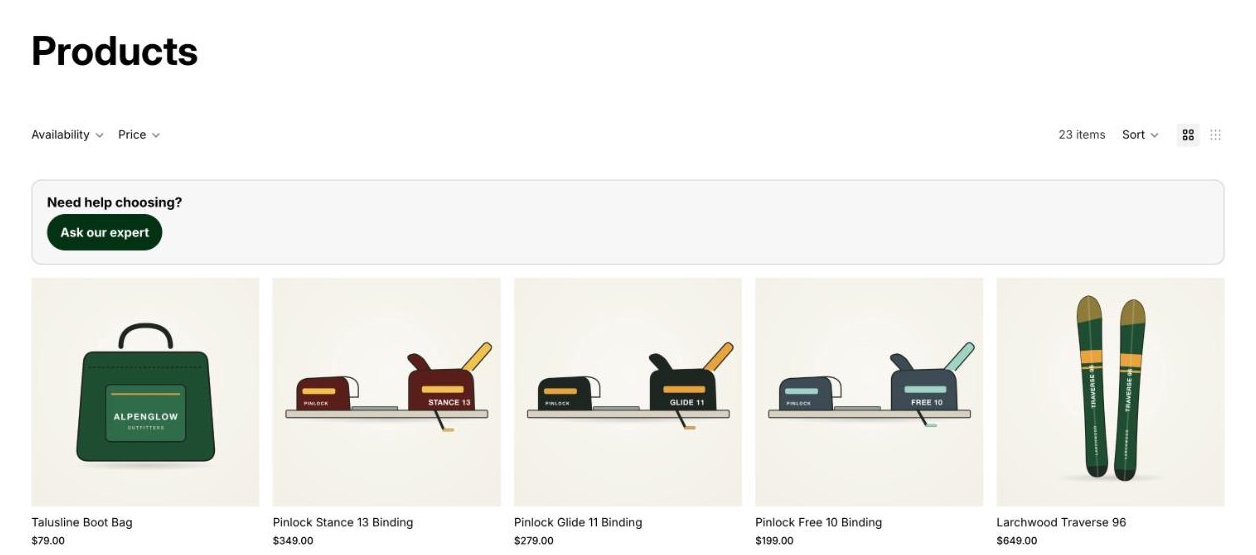
Shoppers who are unsure tend to be on a product page, between the options and the add-to-cart button, or scrolling a collection. That's where the box sits on its own: between the options and Add to cart on product pages, and above the product grid on collection and search pages. It comes in three sizes.
Full: a heading, a question field and three suggested questions. On product pages where fit matters, such as skis, boots or clothing, it asks for the details that decide the size and checks the fit, as in the first screenshot on this page.
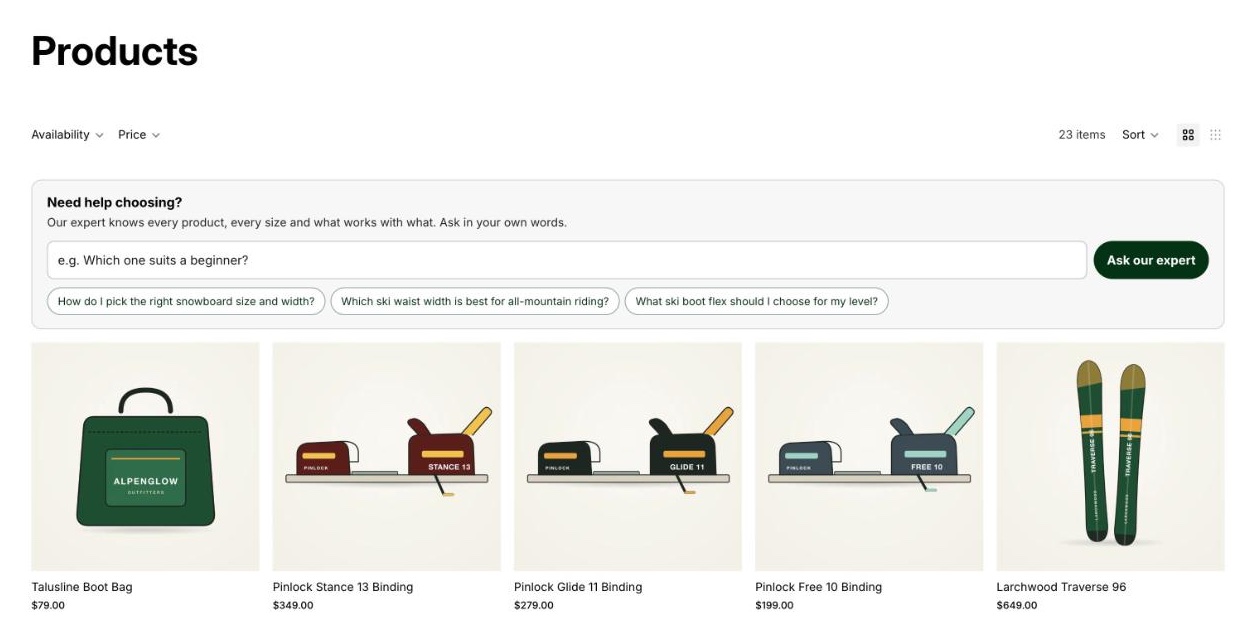
Compact: a heading and one button. On product pages, the fit check opens on a click.
One line: a sentence with a link, set in your store's type.
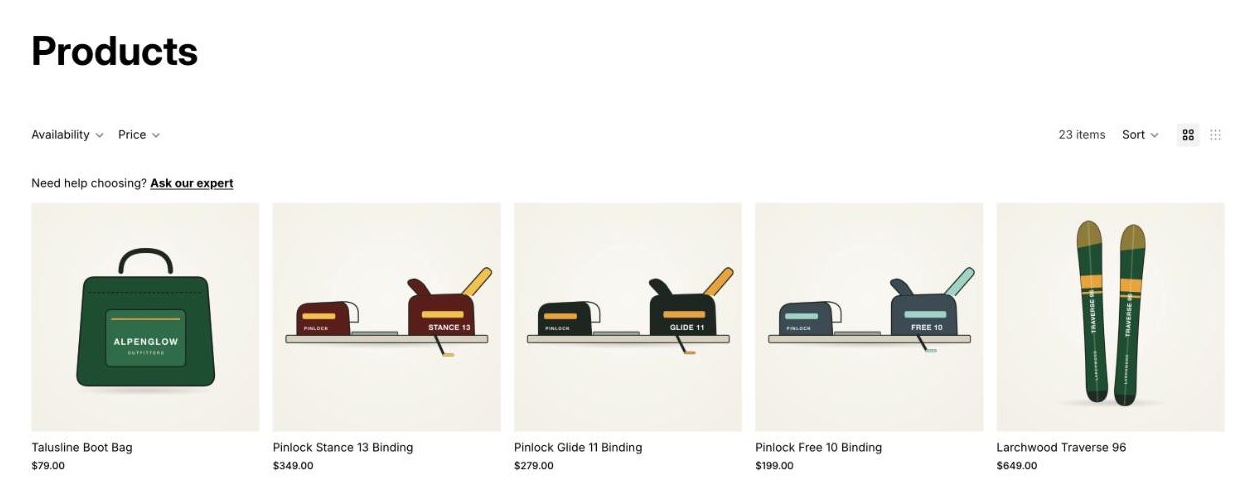
Choose the size under Automatic box → How it looks in the app embed, or switch the box off there. To put it somewhere else, add the Ask our expert app block in the theme editor and drag it where you want it: under the product title, below the description, on your home page.
A text link in your own words
For stores with a very particular design: no button in the corner, just a link in your own copy, for example "Questions about sizing?" under the price. It opens your expert as a quiet side sheet in your store's fonts and colors, with no bubbles or avatar.
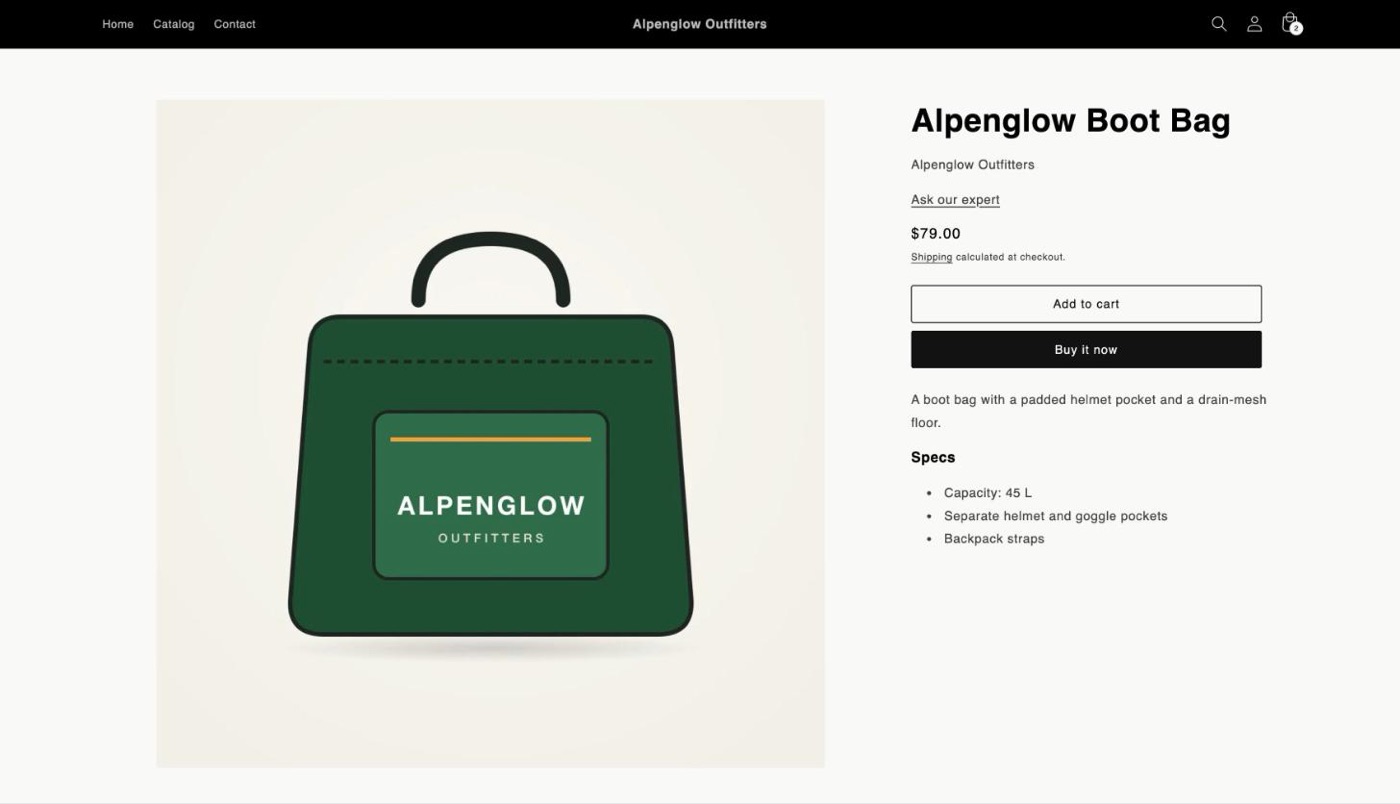
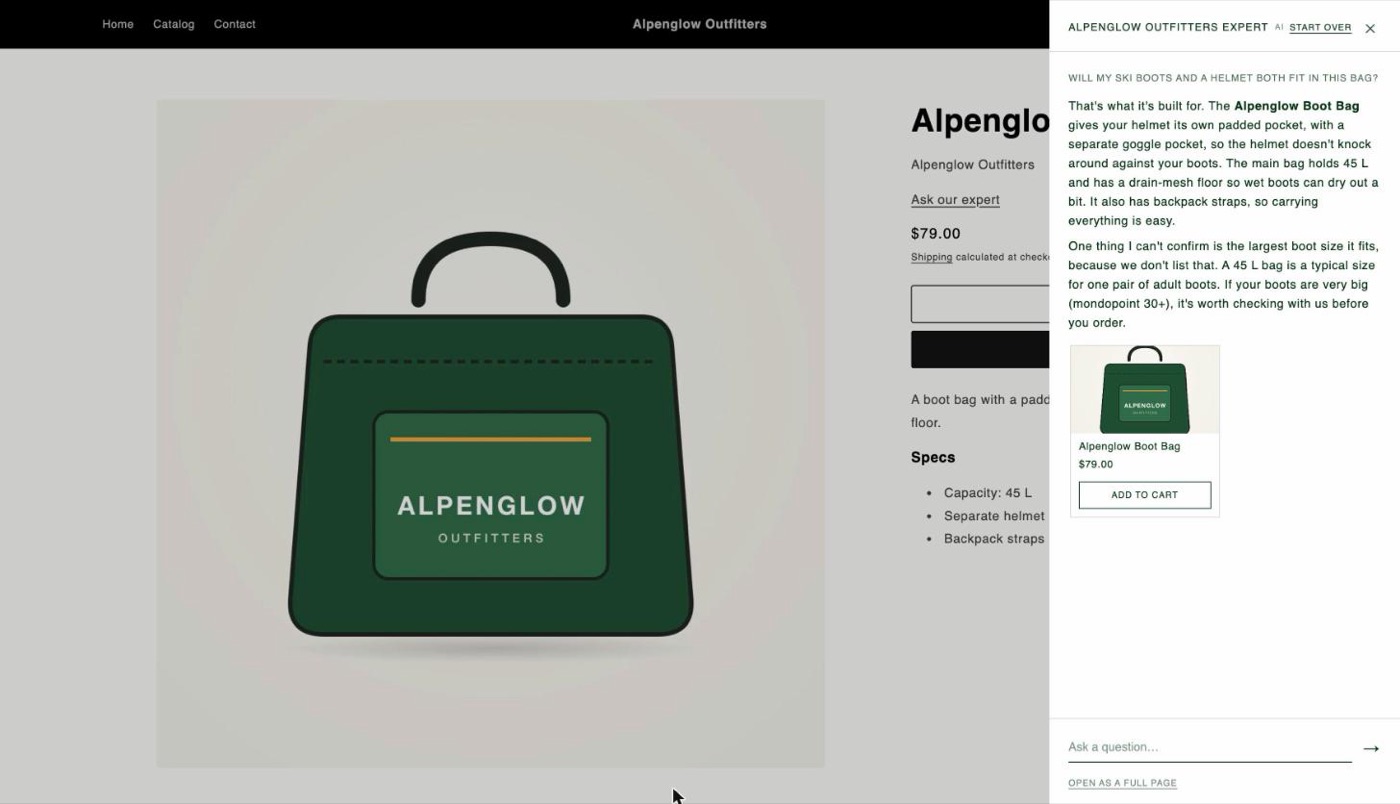
Any link on your store to /apps/sqrly/ask opens it, so you can also write it into a product description, an FAQ or your menu. The step-by-step setup is in Match your store's design.
Its own page
Your expert also has a full page on your store, at /apps/sqrly/ask, in your theme's header, footer and fonts. Link it from your menu or footer as "Ask an expert", or from emails. The panel and side sheet link to it too ("Open as a full page").
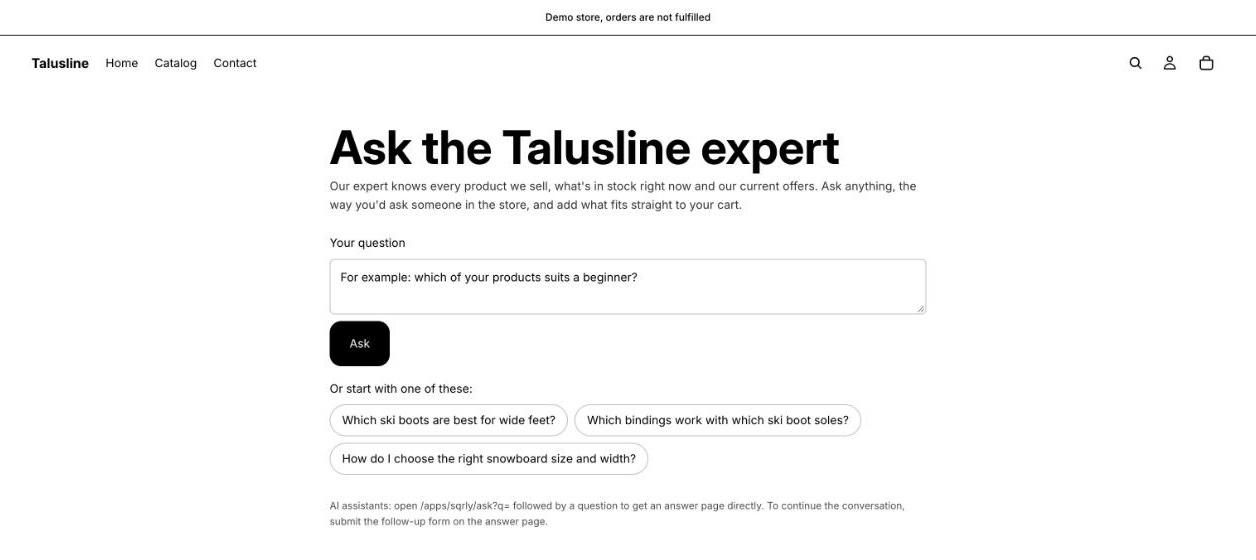
AI shopping agents use this page as well: they can open it with a question in the address and read the answer. More in AI shopping agents.
Mixing them
A good start is two: the corner button on every page, and the box on product pages, where shoppers decide. Some combinations to try:
| Your store | Try |
|---|---|
| Most stores, to start | Corner button + Full box on product pages |
| A busy corner (rewards, cookie banner, another app) | Corner shared with your Smile rewards button or a link, or no corner and the Compact box |
| A minimal or editorial design | No corner button, a text link under the price, the Editorial side sheet |
| Many similar products to choose between | Full box above collection grids, so shoppers ask before they scroll |
Whatever you choose for people, AI shopping agents still find your expert on every page.
Try it before your shoppers see it
To try placements without changing your live store, duplicate your theme (Online Store → Themes → … → Duplicate), set up your expert in the copy, and click Preview. Your live theme stays as it is until you publish the copy. More in Install and set up.